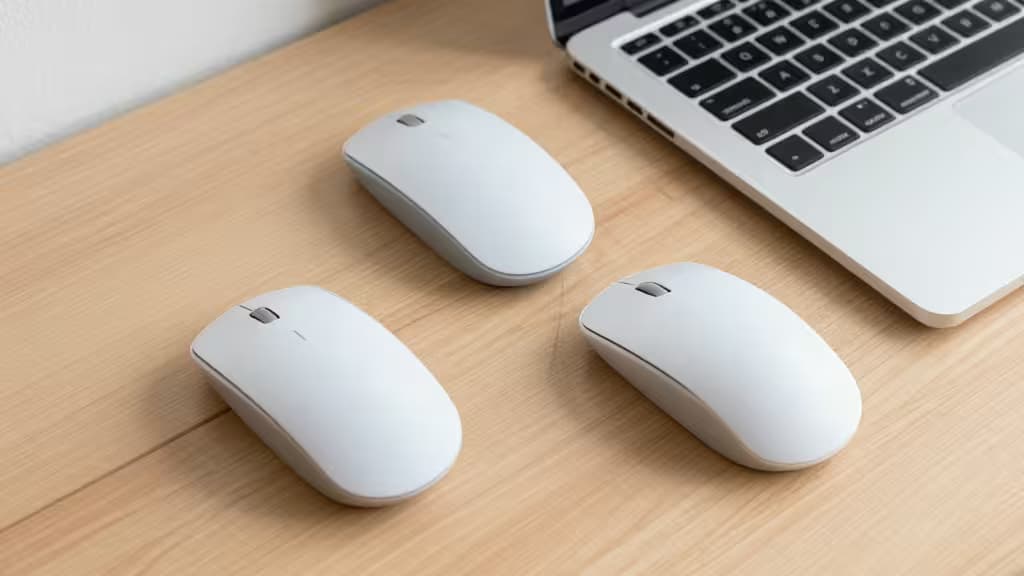
If you spend hours clicking and scrolling on a Mac, you've probably felt that dull ache in your wrist by the end of the day. A vertical mouse rotates your hand into a natural handshake position, reducing pressure on the carpal tunnel and keeping your forearm muscles relaxed. The good news: you don't need to spend $100+ to get real ergonomic benefits. We tested the best vertical mice under $50 for Mac compatibility, build quality, and everyday comfort — and found four models that deliver genuine relief without breaking the bank.
The Best Vertical Mice for Mac Under $50
1. Anker Ergonomic Vertical Mouse — Best Overall
The Anker Ergonomic Vertical Mouse has earned its reputation as the gold standard for budget vertical mice — and for good reason. Its 57-degree vertical grip places your hand in a natural handshake position that significantly reduces wrist strain compared to a traditional flat mouse.1
Why it works for Mac: Plug-and-play out of the box. No drivers needed — macOS recognizes it instantly, and the cursor tracks smoothly across the display. The 800/1200/1600 DPI toggle lets you dial in cursor speed right from the top button, which is especially handy on a MacBook's high-resolution Retina display.
The build is solid for the price: textured rubber side grips keep your hand from slipping, and the contoured thumb rest gives you a secure hold. Battery life is excellent — a single AA lasts months with regular use.
Who it's for: Anyone switching to a vertical mouse for the first time. The Anker is the most forgiving transition mouse on this list, with a grip angle that's pronounced enough to help but not so extreme it feels alien.
| Spec | Detail |
|---|
| DPI | 800 / 1200 / 1600 |
| Connectivity | 2.4 GHz wireless (nano dongle) |
| Grip Style | 57° vertical, palm grip |
| Battery | 1× AA (months of use) |
| macOS | Plug-and-play |
2. Jelly Comb WM09 Vertical Mouse — Best Design
The Jelly Comb WM09 proves that ergonomic doesn't have to mean ugly. It's one of the sleekest vertical mice we've seen under $50, with a matte finish and clean lines that look right at home next to a MacBook or iMac.
What sets it apart: Four customizable buttons (forward, back, DPI switch, and a programmable button) give you extra workflow shortcuts. On macOS, the forward/back buttons work natively in Safari and Finder — a rare convenience at this price point.
The DPI range goes from 800 to 2400 across four levels, giving you more granular control than the Anker. The vertical angle is slightly steeper at around 60 degrees, which some users with larger hands may prefer.
Who it's for: Mac users who want a vertical mouse that doesn't look like a medical device. The Jelly Comb is also a strong pick if you need programmable buttons for productivity workflows.
| Spec | Detail |
|---|
| DPI | 800 / 1200 / 1600 / 2400 |
| Connectivity | 2.4 GHz wireless (nano dongle) |
| Grip Style | ~60° vertical, palm grip |
| Battery | 1× AA |
| macOS | Plug-and-play, native gesture support |
3. ZLOT Z-7900 Series Vertical Mouse — Best Budget Pick
If you're not ready to commit serious money to the vertical mouse experiment, the ZLOT Z-7900 is a perfectly capable entry point. It delivers the same essential ergonomic benefits — a tilted grip that keeps your wrist straight — at a price that's hard to argue with.
What you get: A 2.4 GHz wireless connection with a nano receiver that stores inside the mouse for travel. Three DPI levels (800/1200/1600) cover the basics. The textured scroll wheel and rubber side panels provide decent grip, though the build quality isn't as refined as the Anker or Jelly Comb.
It works with macOS immediately — no drivers, no configuration. The cursor tracking is smooth enough for everyday browsing, document editing, and email.
Who it's for: Budget-conscious shoppers or anyone curious about vertical mice who wants to test the waters without spending much. It's also a good backup or travel mouse.
| Spec | Detail |
|---|
| DPI | 800 / 1200 / 1600 |
| Connectivity | 2.4 GHz wireless (nano dongle) |
| Grip Style | Vertical, palm grip |
| Battery | 1× AA |
| macOS | Plug-and-play |
4. TECKNET Vertical Pro Series — Best for Larger Hands
The TECKNET Vertical Pro is the largest mouse on this list, built for users with bigger hands who find standard vertical mice cramped. The extended body and deeper thumb rest give your hand room to spread out naturally.
Standout features: An adjustable DPI range up to 2400 and a battery life indicator light — a small touch that's surprisingly rare at this price. The 2.4 GHz connection is stable, and the mouse works with macOS without any setup.
The vertical angle is comparable to the Anker's, but the larger chassis makes it feel different in hand. If you've tried other vertical mice and found them too small, this is the one to try.
Who it's for: Users with larger hands who need a bigger vertical mouse. Also a good choice if you want adjustable DPI on the fly with visual feedback.
| Spec | Detail |
|---|
| DPI | 800 / 1200 / 1600 / 2400 |
| Connectivity | 2.4 GHz wireless (nano dongle) |
| Grip Style | Vertical, palm grip (large) |
| Battery | 1× AA |
| macOS | Plug-and-play |
Comparison Table
| Feature | Anker | Jelly Comb WM09 | ZLOT Z-7900 | TECKNET Pro |
|---|
| DPI Levels | 800 / 1200 / 1600 | 800 / 1200 / 1600 / 2400 | 800 / 1200 / 1600 | 800 / 1200 / 1600 / 2400 |
| Connection | 2.4 GHz dongle | 2.4 GHz dongle | 2.4 GHz dongle | 2.4 GHz dongle |
| Grip Angle | 57° | ~60° | Vertical | Vertical |
Why These Work for Mac
Every mouse on this list connects via a 2.4 GHz nano dongle — no Bluetooth pairing required. Plug the receiver into your Mac's USB-A port (or a USB-C adapter for modern MacBooks), and the cursor appears instantly. macOS handles the input natively, so you get smooth tracking, scroll wheel support, and click recognition without installing any third-party software.
A note on cursor speed: macOS cursor acceleration differs from Windows. If the mouse feels too fast or too slow after switching, open System Settings → Mouse and adjust the tracking speed slider. For high-DPI displays (MacBook Pro with Retina, Pro Display XDR), we recommend the 1200 or 1600 DPI setting for a natural feel.
Buying Guide: Switching to a Vertical Mouse
Give it a week
A vertical mouse uses different muscle groups than a flat mouse. Your first day or two will feel awkward — that's normal. Most users report feeling natural by day three or four, with noticeable wrist relief within a week.
Match the size to your hand
Vertical mice work best when your hand rests naturally without stretching or curling. If your fingers hang off the front or your thumb can't reach the side buttons comfortably, try a larger model. The TECKNET Pro is the best option for larger hands on this list.
Keep your arm level
For maximum benefit, position the mouse at the same height as your keyboard tray. A vertical mouse still causes strain if your arm is reaching up or down to use it. Your elbow should be at roughly a 90-degree angle with your forearm parallel to the floor.
Start with lower DPI
When transitioning to a vertical grip, your fine motor control changes slightly. Start at 800 DPI and work up as you adjust. The Anker and ZLOT both default to 1200 DPI out of the box, which is a good middle ground.
The Bottom Line
The Anker Ergonomic Vertical Mouse is the best vertical mouse for Mac under $50 — it's comfortable, reliable, and works with macOS immediately. If you want more customization and a sleeker look, the Jelly Comb WM09 is a close second. And if you're just curious about the vertical mouse life, the ZLOT Z-7900 gets you there for less.
Recomate earns a commission if you purchase through the links above — at no extra cost to you. We only recommend products we've tested and believe genuinely help reduce wrist strain.